



- Published on: 2026-11-13 15:37:00
How to Change Your Forgotten Password
It is a moment of pure panic that happens to everyone: you try to log in to your account, and the password you were sure was correct is suddenly wrong. If you are thinking, "I can't login to my trading account!", take a deep breath. You have come to the right place.
Forgetting your trading login details for your main TradingPRO account (your Client Portal) is a very common issue, and the solution is much simpler than you think. This guide will walk you through the exact steps to reset password access so you can get back to managing your profile in minutes.
The Step-by-Step Guide to Resetting Your Password
Follow these simple visual steps to regain access to your Client Portal.
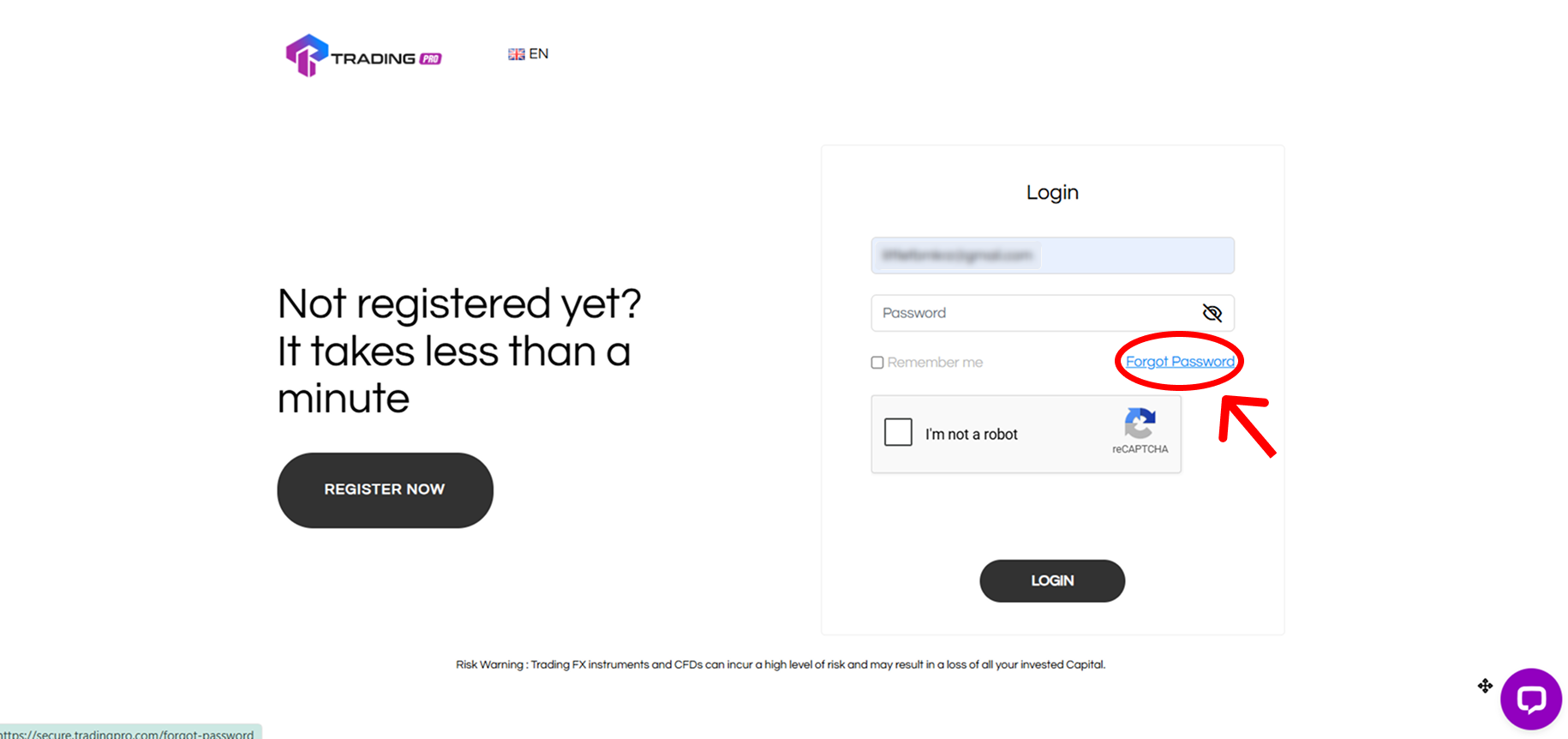
Step 1: Go to the Login Page and Click 'Forgot Password'
First, open the TradingPRO login page on your browser or app. Instead of entering your details, look for and click the "Forgot Password?" link.
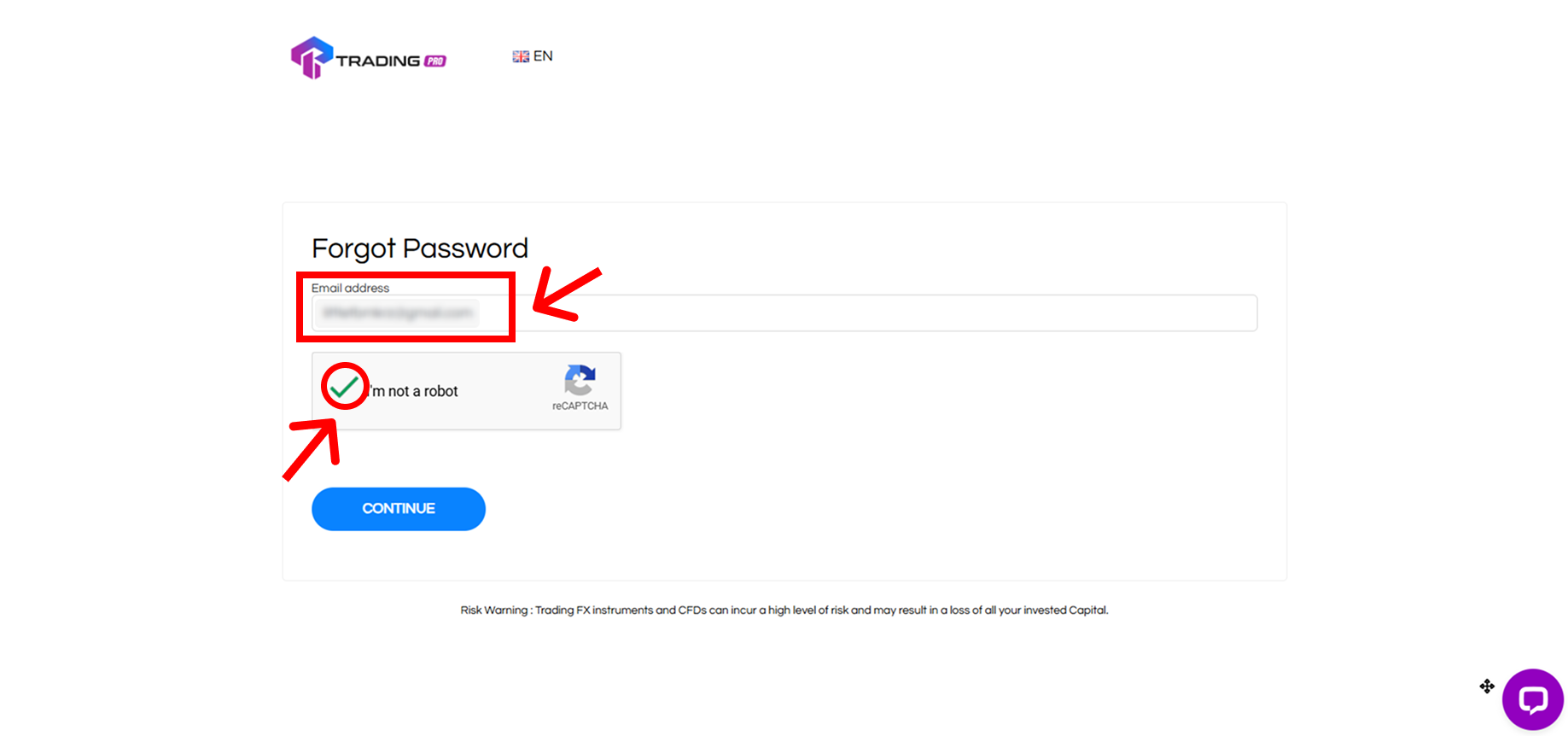
Step 2: Enter Your Registered Email Address
You will be taken to the password recovery page. In the field provided, enter the email address you used to register your TradingPRO account. Then, check the "I'm not a robot" box and click "Continue."
Step 3: Enter the PIN Sent to Your Email
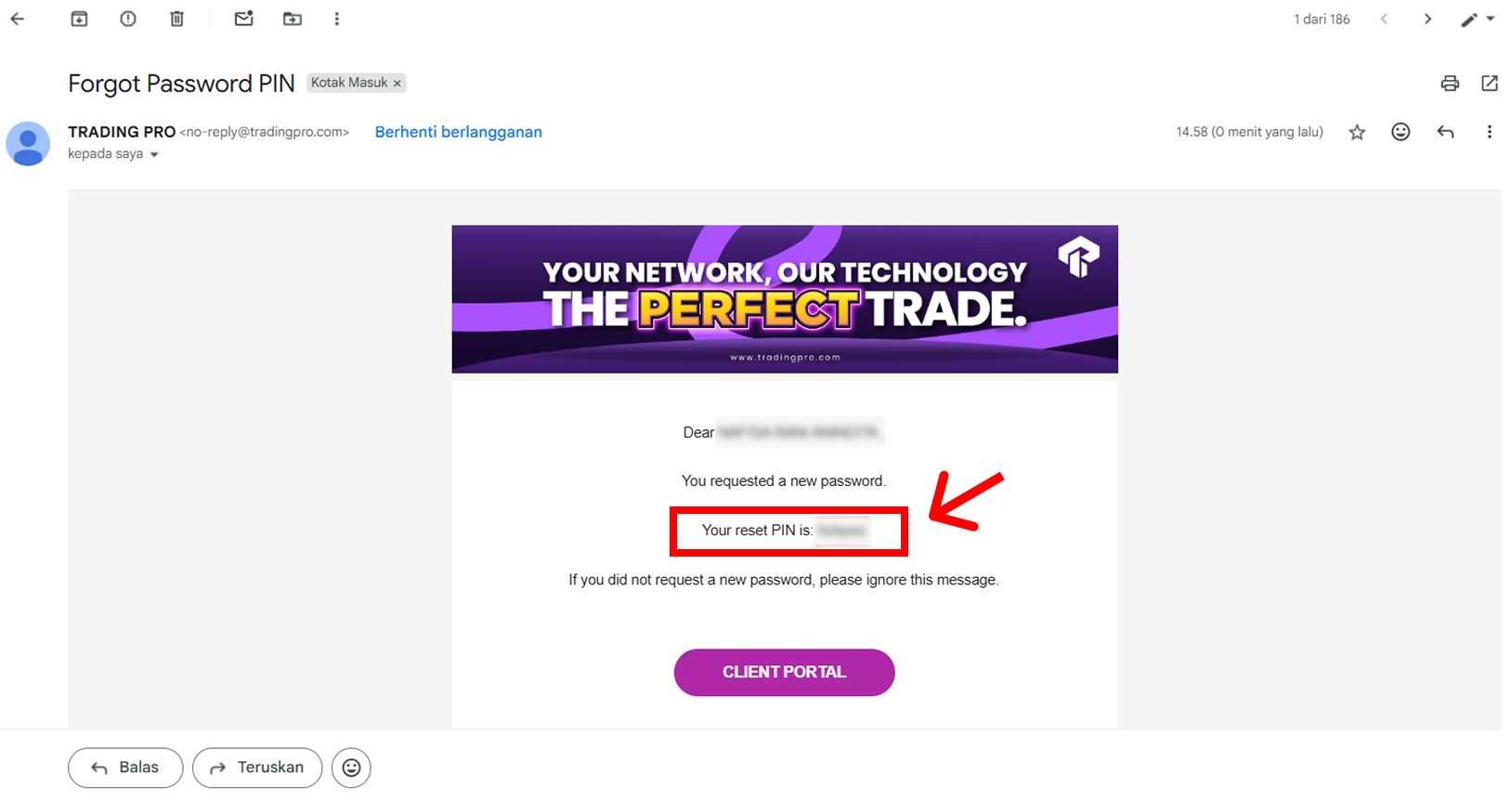
Our system will immediately send a one-time PIN to your registered email address. Check your inbox (and spam folder, just in case) for an email from TradingPRO containing your 6-digit verification code.
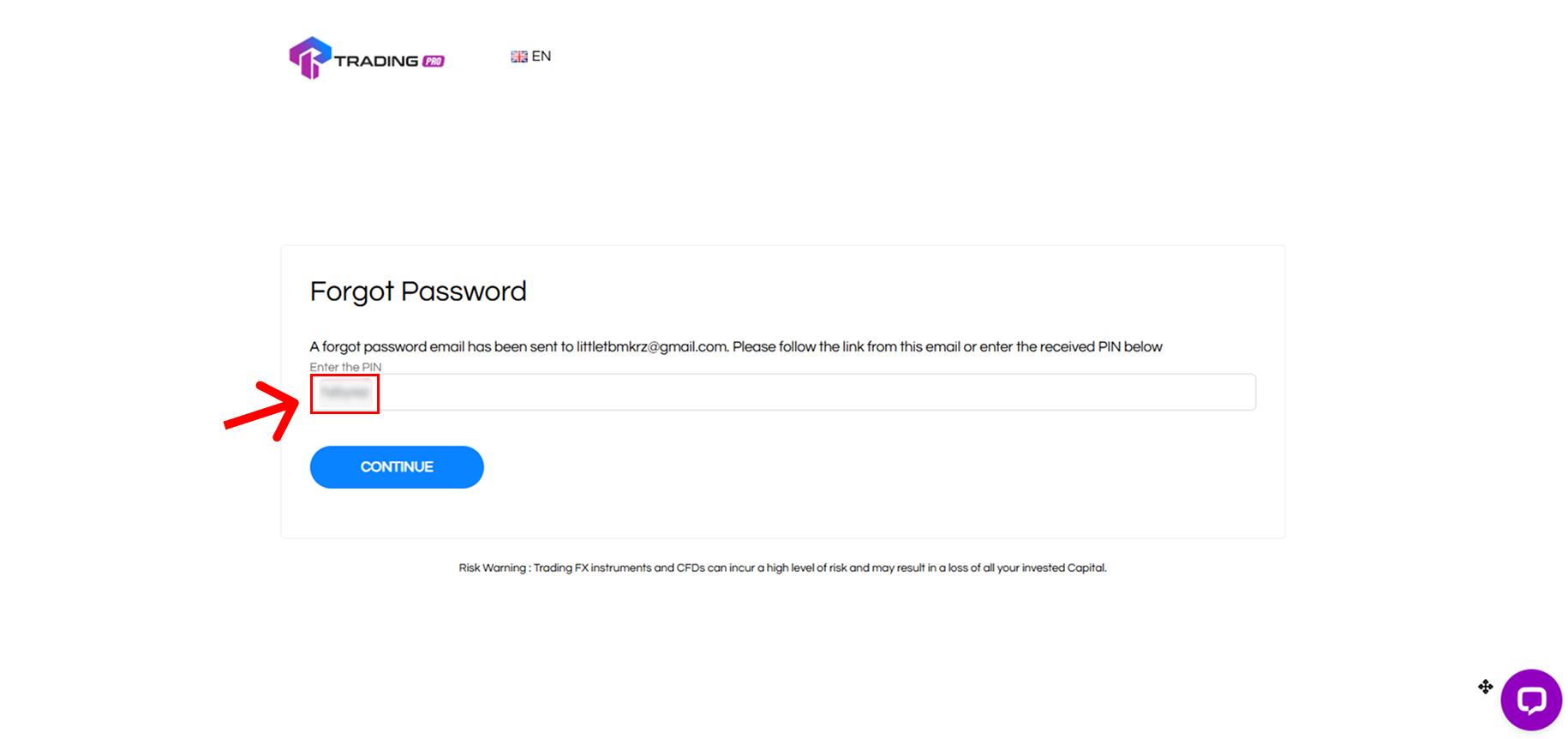
Now, go back to the password reset page and enter the 6-digit PIN you received. Once entered, click "Continue."
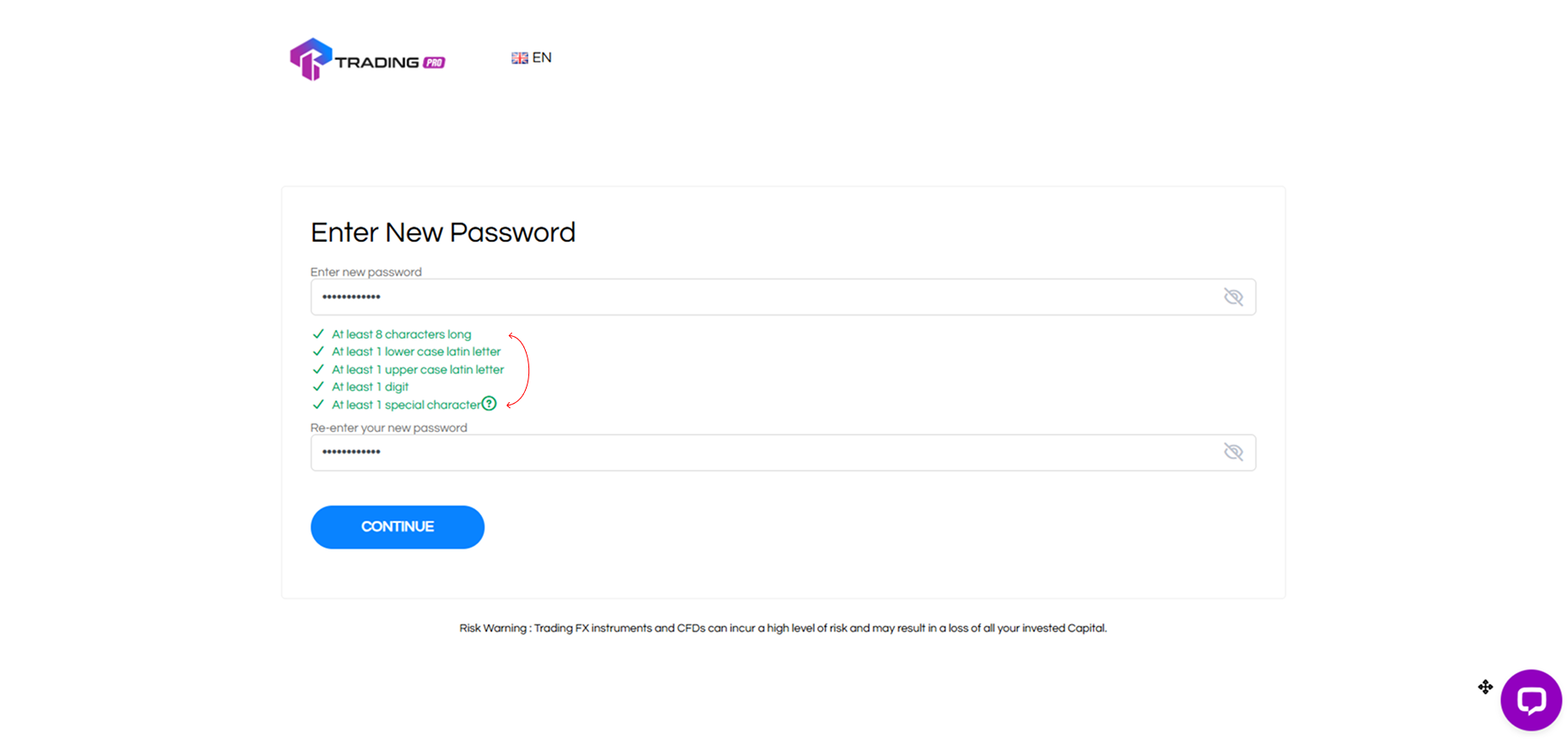
Step 4: Create Your New Secure Password
You are now on the final step! Create a new password for your account. To ensure your account is secure, your new password must meet the following criteria:
- 8 to 15 characters long
- Contains both uppercase and lowercase letters
- Contains at least one number
As you type, the requirement indicators will turn green once a condition is met. The "Continue" button will only become active after all requirements are green.
Step 5: Log In With Your New Password
Once you set your new password, you will be automatically redirected back to the login page. You will see a green banner at the top confirming "Your Password has been successfully reset." You will also receive a final confirmation email.
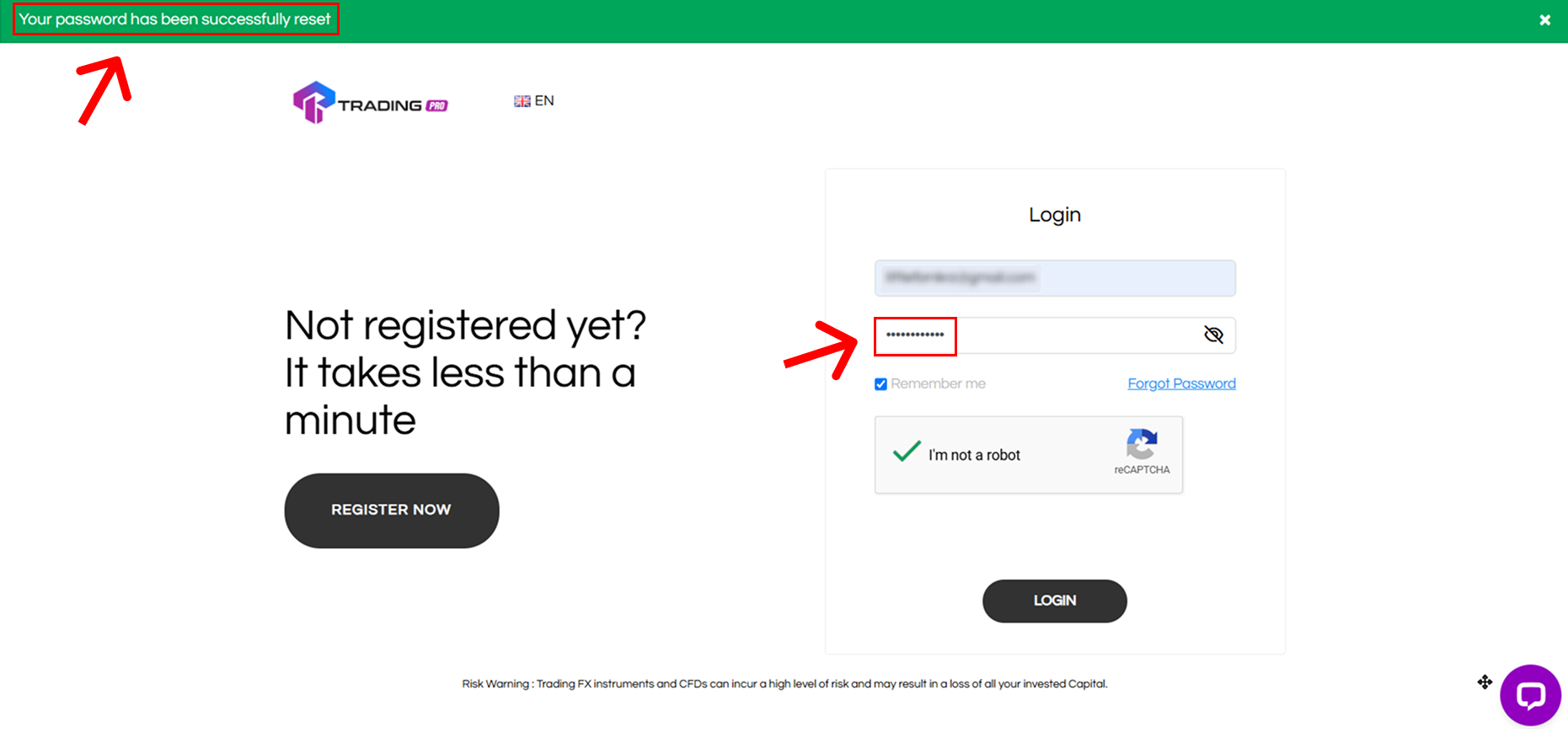
Now, you can confidently log in to your Client Portal Login using your email address and your new password!
Still Having Trouble? We Are Here to Help
This process should get you back into your account smoothly. However, if you are still facing issues (for example, you are not receiving the PIN email), our customer support team is available 24/7 to assist you.
Visit Our Help Center for More Guides or Contact Support Directly
Connect with the TradingPRO Community
Stay connected with us for platform updates, security tips, and more:


