




- Published on: 2026-10-14 10:04:00
How to Change Chart Colours in MetaTrader 4 (MT4): A Step-by-Step Customization Guide
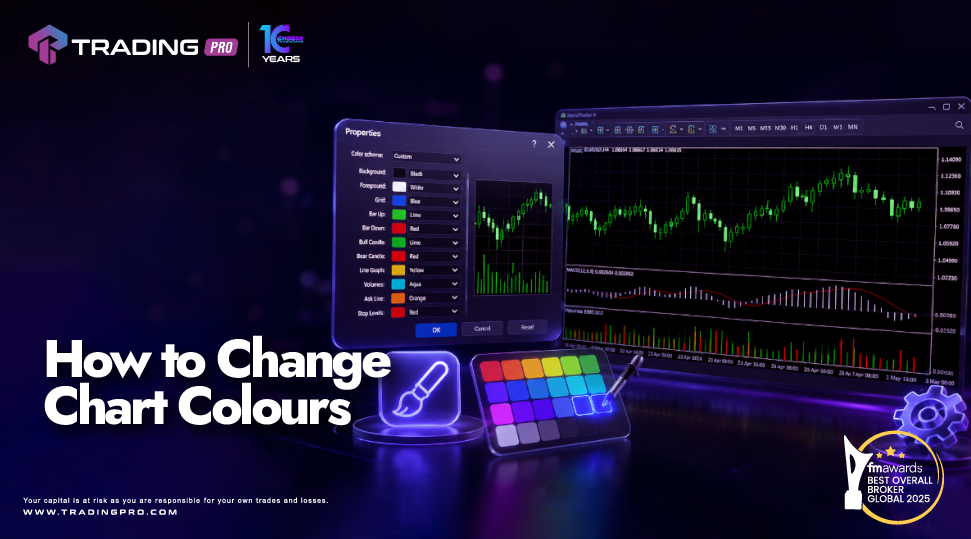
When opening MetaTrader 4 (MT4) for the first time, you are greeted by a default black background with neon green bars. For many traders, this default layout quickly causes eye strain or makes technical analysis difficult during long trading sessions. Learning how to customize your chart's visual properties is one of the essential skills every beginner must master.
Adjusting your visual workspace helps you identify price patterns, spot market support and resistance levels, and make clearer analytical decisions. In this comprehensive step-by-step guide, you will learn how to customize your chart color palette, adjust specific individual elements like a mt4 candlestick body or a trendline mt4 drawing tool, and save your visual setup so you never have to reconfigure it again.
Whether you trade forex currency pairs, commodities, or indices using a regulated broker like TradingPRO, tailoring MT4 to your visual preferences will transform your daily market analysis routine.
MT4 Properties window visual color settings. Source: Blueberry Markets
Why Customizing Your MT4 Chart Colours Matters
Visual clarity directly impacts trading performance. Technical analysis relies heavily on instant pattern recognition, which becomes harder when your background creates harsh glare or poor contrast.
Adjusting your MT4 chart colors provides three distinct advantages:
- Reduced Visual Fatigue: A softer background, such as dark gray or crisp white, protects your eyes during extended screen time.
- Faster Pattern Recognition: Customizing your mt4 candlestick bullish and bearish colors makes upward and downward price movements instantly identifiable.
- Closer Analysis Precision: Changing contrast settings makes chart objects, technical indicators, and drawing tools like a trendline mt4 overlay stand out clearly against historical price movement.
TradingPRO provides seamless access to the full desktop and mobile versions of MT4, allowing traders to personalize their entire visual workspace without restrictive technical limits.
How to Change Chart Colours in MT4 (Step-by-Step)
MetaTrader 4 makes changing chart properties simple once you know where to look. Follow these steps to access and modify your workspace properties:
Step 1: Open the Chart Properties Menu
Right-click anywhere on an active price chart in MT4 and select Properties from the bottom of the drop-down menu. Alternatively, select the active chart and press the F8 shortcut key on your keyboard.
Step 2: Navigate to the Colors Tab
A dialog box will appear on screen containing two tabs: Colors and Common. Click on the Colors tab to view all customizable color fields alongside an instant live preview box.
Step 3: Choose a Preset Color Scheme or Set Custom Colors
MT4 includes three built-in color schemes in the top drop-down box:
- Yellow on Black: High contrast, dark mode style.
- Green on Black: The classical MT4 default theme.
- Black on White: Clean, paper-style layout ideal for daytime analysis.
If you prefer full control, you can click each individual element color dropdown to build a completely custom color palette.
Key MT4 Chart Elements Explained
To build a clean chart setup, it helps to understand what each specific color field controls inside the Properties menu:
| MT4 Color Setting | What It Controls On Your Chart |
| Background | The main canvas color behind all price bars and indicators. |
| Foreground | Color of the price axes, time scales, and chart frame text. |
| Grid | The background grid lines separating time and price intervals. |
| Bar Up / Bar Down | The outline and wick colors for traditional bar charts and candlesticks. |
| Bull Candle | The filled body color of an upward price candle. |
| Bear Candle | The filled body color of a downward price candle. |
| Line Graph | The line color when viewing price as a continuous line chart. |
| Volumes | Volume histogram bars displayed at the bottom of the price pane. |
| Ask Line | The real-time line representing the current market ask price. |
| Stop Levels | Horizontal lines indicating active Stop Loss and Take Profit levels. |
Configuring Candle Colors for Optimal Clarity
Candlesticks are the most popular price presentation format among retail forex traders. When reading a mt4 candlestick, the hollow or solid body tells you instantly whether buyers or sellers dominated that specific time frame.
To configure clean candlestick display colors:
- Change the Bar Up setting to match your preferred bullish outline color (e.g., Dark Green or Royal Blue).
- Set the Bull Candle setting to the exact same shade or a lighter fill tone.
- Change the Bar Down setting to match your preferred bearish outline color (e.g., Dark Red or Crimson).
- Set the Bear Candle setting to match your bearish bar down choice.
Matching your bar outlines to candle bodies creates solid, crisp candles that make trend identification effortless. Once configured, trading account holders at TradingPRO can analyze price action on MT4 charts without confusing visual clutter.
How to Change Colors for Drawing Tools and Indicators
Customizing your background and candlesticks is only half the battle. Technical analysis frequently involves drawing support lines, channel boundaries, and moving averages.
Customizing Trendlines and Graphical Objects
When drawing a trendline mt4 object on your chart, its initial color defaults to the last style used or system default.
To customize any drawing object:
- Double-click the trendline mt4 object directly on your chart until small selection handles appear on its ends.
- Right-click the line and select Trendline properties (or press Ctrl + B to open the Objects List).
- Under the Common tab, select your preferred color from the dropdown menu.
- Adjust the line style (solid, dashed, dotted) and line thickness settings as desired.
- Click OK to save your changes.
Making key trendlines thicker or assigning distinct colors to long-term trendlines versus short-term trendlines helps maintain an organized workspace.
How to Save Your Custom Color Scheme as a Template
Changing colors manually every time you open a new market pair like EUR/USD or GBP/JPY is time-consuming. Fortunately, MT4 allows you to save your customized color settings as a reusable chart template.
- Configure Your Ideal Chart Settings: Set up your colors first.
Adjust your background, grid, candlestick colors, and indicator overlays until your chart looks exactly how you want it. - Open the Template Manager: Right-click menu shortcut.
Right-click anywhere on the customized chart, hover over Templates, and click Save Template... - Name Your Custom Template: Use default.tpl for auto-apply.
Type a memorable name for your template file (e.g., CleanWhite.tpl). Pro Tip: If you name the file default.tpl, MT4 will automatically apply your color setup every single time you open a new chart window. - Apply to Any New Pair: One-click setup.
Open any new currency pair chart, right-click, select Templates, and choose your saved template from the list to instantly load your custom color scheme.
Common Beginner Mistakes to Avoid
- Using Low-Contrast Combinations: Setting dark red bear candles on a black background makes wicks difficult to spot. Ensure high contrast between candle bodies and the canvas.
- Overcrowding Grid Lines: Bright grid lines draw attention away from price action. Either set your Grid color to a subtle shade close to your background color, or press Ctrl + G to hide the grid entirely.
- Forgetting the Ask Line Color: By default, the Ask line may blend into your background. Customize your Ask line color in the Properties menu to see the live spread clearly.
- Not Saving Default Templates: Configuring charts manually for every pair wastes valuable trading time. Always save your main color preferences into a master template file.
Start Trading MT4 with TradingPRO
Mastering platform customization is the first step toward building a disciplined trading workflow. A clean, personal chart layout eliminates visual distraction so you can focus on reading market movements accurately.
TradingPRO provides traders with a reliable, high-performance trading environment built around MetaTrader 4. With competitive spreads, rapid order execution, responsive multi-lingual support, and access to major global markets, TradingPRO gives both beginners and experienced traders the tools they need to succeed.
Open a demo or live account with TradingPRO today, download the MT4 platform, and build your customized visual trading workspace.
Frequently Asked Questions (FAQ)
How do I change the color of a specific mt4 candlestick on my chart?
You cannot change the color of an individual candle in MT4 independently. When you modify candle settings inside the Properties menu (press F8), the selected Bull Candle and Bear Candle colors apply across every mt4 candlestick on that chart window.
How do I change the color of a trendline mt4 drawing tool?
Double-click the trendline mt4 object directly on your chart until small square handles appear at its endpoints. Right-click the line, choose Trendline properties, and pick your preferred shade from the color dropdown under the Common tab.
Will changing my chart colors affect my live trading account balance or active positions?
No. Customizing visual settings, colors, or drawing objects only modifies how market data is presented on your screen. It has zero effect on open trades, account equity, spreads, or order execution.
How can I make my custom chart colors apply automatically to every new chart?
Customize your chart visual preferences and save the file under the exact name default.tpl inside your MT4 template directory. MetaTrader 4 automatically uses the default.tpl file as the master visual layout whenever you open a new chart window.
Can I change chart colors in the MT4 mobile app?
Yes. On iOS or Android, tap the chart screen, navigate to Settings, and select Colors. From there, you can choose preset schemes or adjust background, foreground, and candlestick properties individually.
Conclusion
Customizing your MetaTrader 4 chart colors is a simple yet powerful step toward creating an efficient trading environment. Eliminating screen glare, ensuring clear contrast between bullish and bearish market moves, and distinctively highlighting key technical objects like a trendline mt4 overlay allows you to make calm, analytical trading decisions without unnecessary eye strain.
By saving your favorite color schemes into reusable templates, you can streamline your chart analysis across dozens of financial instruments in seconds.
A clean chart layout pairs best with a fast, reliable forex broker. TradingPRO offers full access to MetaTrader 4 with institutional-grade execution, competitive spreads, flexible leverage options, and dedicated multilingual client support.
Ready to build your ideal trading setup? Open a demo or live account with TradingPRO today and experience seamless technical analysis on MetaTrader 4.


